
Render Settings
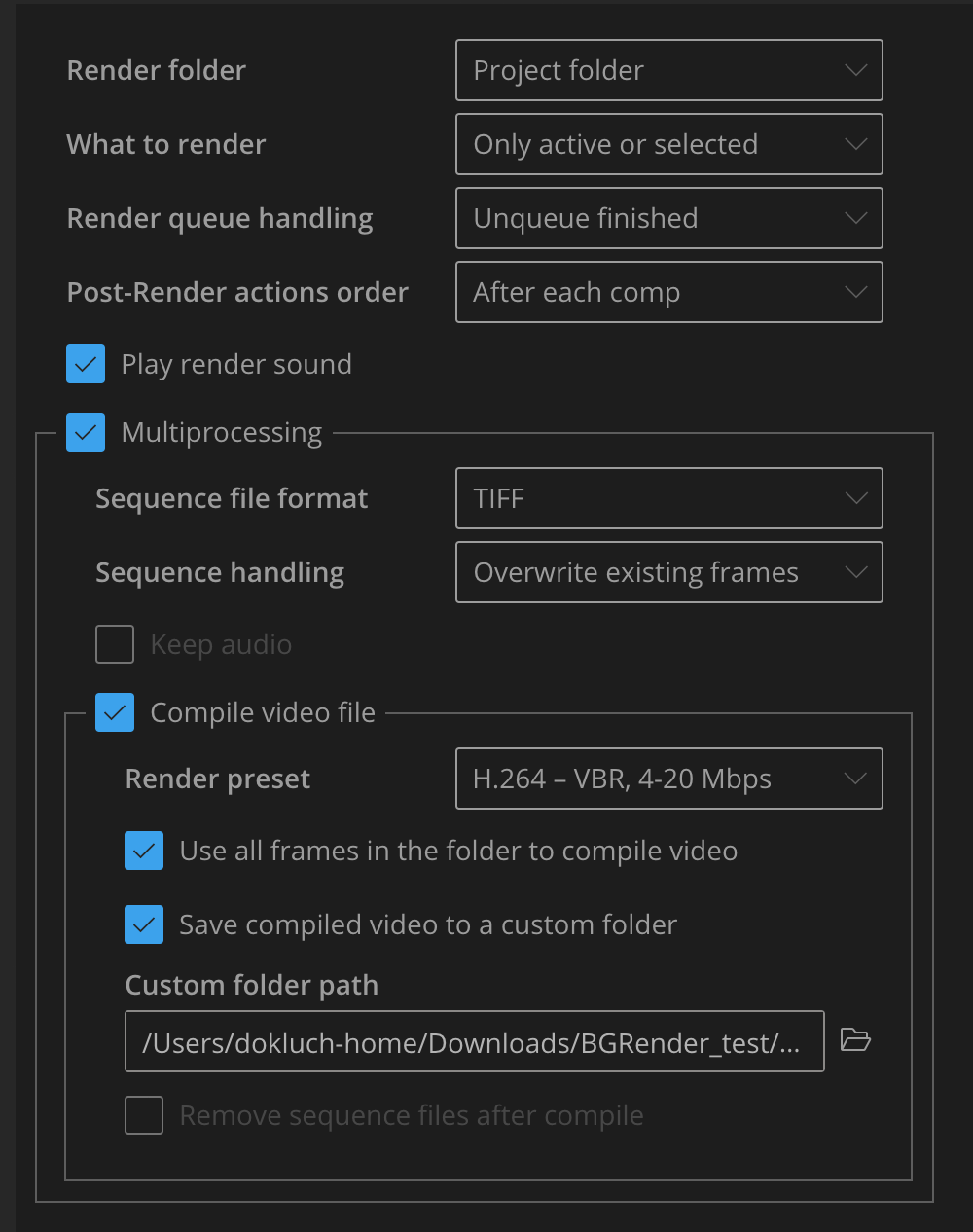
Render folder
- Project folder — this option puts all your renders into a BGRenders subfolder.
- As in render queue — leaves the render folder path as set in the Render Queue.
- Custom — set a custom folder.
What to render
Control what to add to the Render Queue
- Only render queue — you create the Render Queue yourself (default).
- Add to RQ and render — adds the current composition, or compositions selected in the Project panel, to the Render Queue.
- Only active or selected — same as the previous option, but it first clears the Render Queue and then adds the current composition, or compositions selected in the Project panel.
Rendering with custom Output Module settings
If you need to render compositions with custom Output Module settings, like Half resolution or Draft quality, first add those compositions to the After Effects render queue, apply the desired settings, and make sure you have Only render queue selected in this dropdown. BG Renderer Max will render with the applied settings.
When you have other options selected, BG Renderer Max adds active or selected compositions to the After Effects render queue. By default, it sets Best quality and Full resolution.
Adding items to the render queue
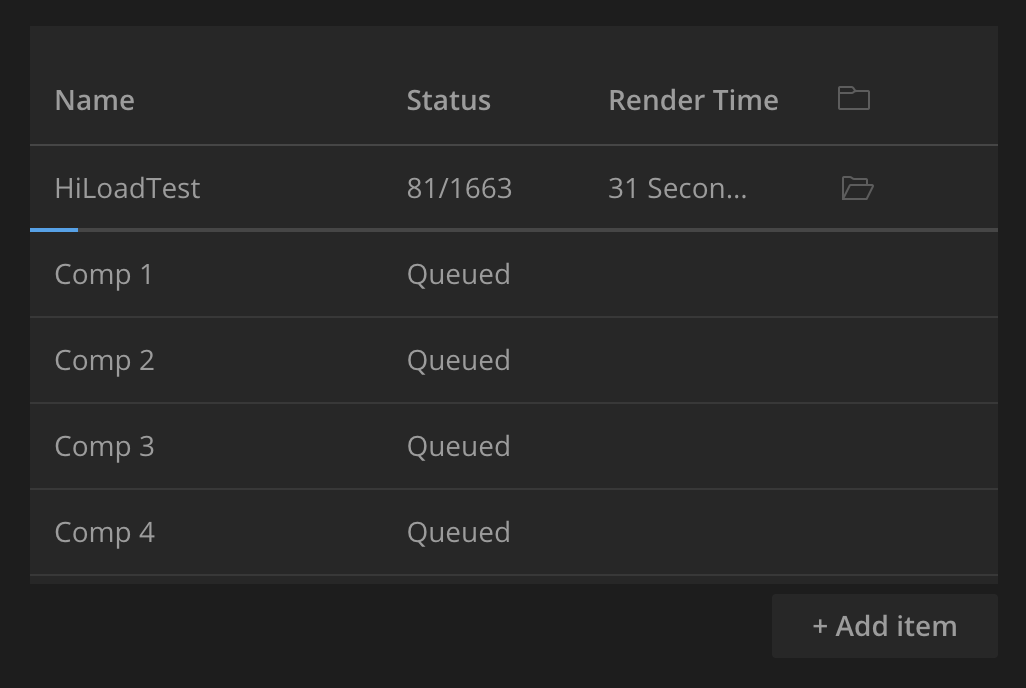
You can add items to the BG Renderer Max render queue when the render is active.
Depending on the "What to render" setting, either add items to the After Effects render queue (Only render queue), stay in your current composition, or select compositions in the Project panel (Add to RQ and render or Only active or selected).
Click on Add Item button below the queue.
Render queue handling
Choose what to do with your Render Queue after the render finishes.
- Unqueue finished (default)
- Keep in the queue
- Clean render queue
Post-Render actions order
Set the order of Post-render actions.
- After each comp
- Only on the last item – launches Post-render actions only for the last item. Use this option to get notified on the Render Queue completion.
Play render sound
Enable this checkbox to play a joyful jingle of completion!
Multiprocessing
Enable this checkbox to render your composition in multiple threads simultaneously. When you do so, the thread counter appears next to the Render button.
Sequence file format
BG Renderer Max has three sequence presets:
- TIFF — fast, but produces large files
- JPG — a balance of speed and file size
- PNG — slower, but better for storage and archiving
Select As in render queue in the dropdown if you wish to use custom sequence presets.
Use this option if you want to render a composition with an alpha channel.
List of supported custom sequence formats:
- .PNG
- .JPG
- .TIFF
- .TGA
- .EXR
- .DPX
- .PSD
If the custom sequence is not in one of the supported formats, BG Renderer Max resets it to JPG. .DPX and .PSD won't compile to video.
Sequence handling
This dropdown lets you choose how existing sequences are handled.
- Skip existing frames — works just like “Skip existing files” in the After Effects output module setting.
- Overwrite existing frames — when enabled, BG Renderer Max will overwrite all files in the sequence folder, and then compile the video. The Remove sequence files and Keep audio options are disabled in this mode.
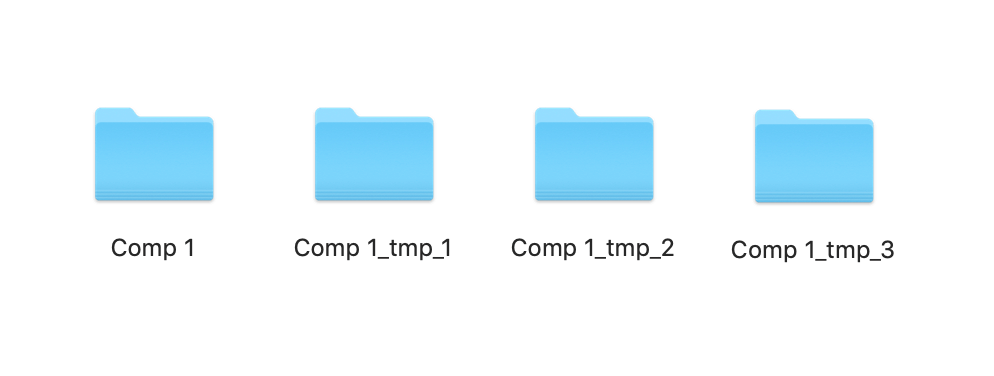
- Keep sequence iterations — when enabled, every time you start a render, BG Renderer Max creates a new folder for the sequence, thus keeping all previous renders. Remove sequence files is disabled in this mode.
Versioning allows you to go back to the previous versions quickly.
Read more about multiprocessing on this page.
Keep audio
When enabled, BG Renderer Max renders a WAV file along with the sequence.
Enable Compile video file to add the audio output to the video file.
BG Renderer Max adds one render queue item with BGRenderer2_WAV output module template for each item in the After Effects queue.
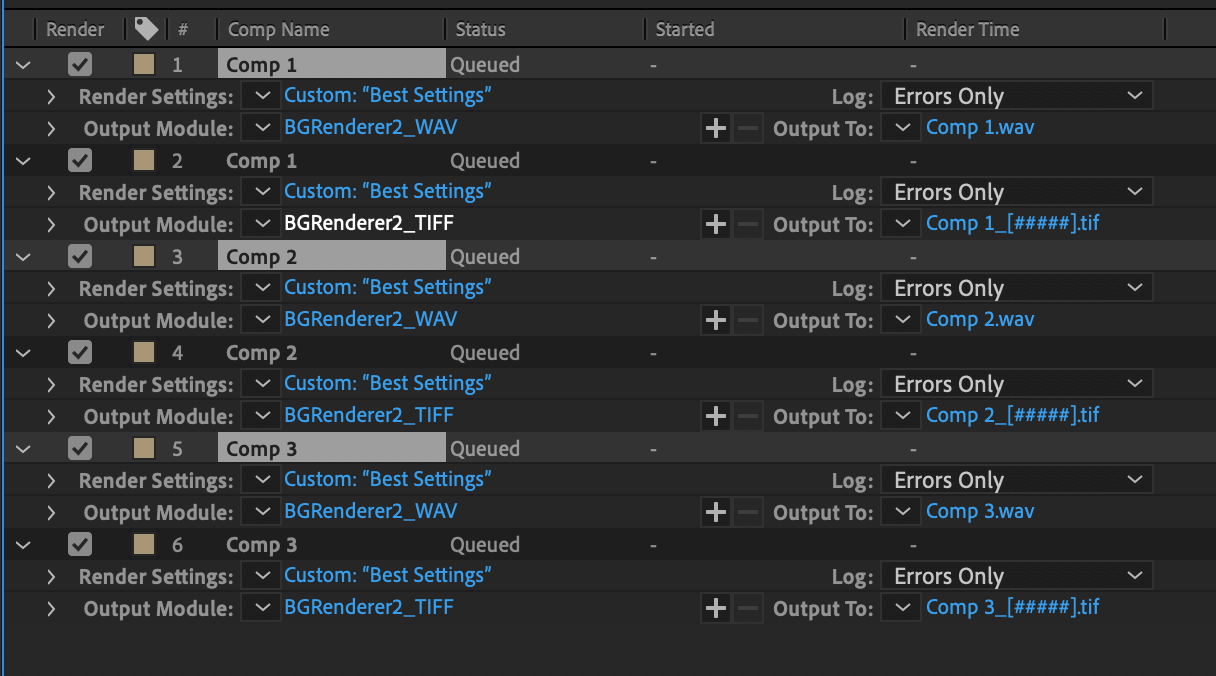
These items won't appear as separate in the BG Renderer Max render queue.
Compile Video File
Enable this checkbox to compile each rendered image sequence to a video file.
Select one of the ready-made presets:
- H.264 - VBR, 40-60 Mbps – produces .mp4 file
- H.264 - VBR, 4-20 Mbps – produces .mp4 file
- H.264 - VBR, 2-7 Mbps – produces .mp4 file
- ProRes 422 LT – produces ProRes .mov file
- ProRes 422 HQ – produces ProRes .mov file
- ProRes 4444 + alpha – produces ProRes 4444 .mov file with alpha channel support, even on Windows
- VP8 (WebM) – High Quality – produces .webm file
Custom FFmpeg Command Editor
Starting with BG Renderer 1.0.12, you can write your own FFmpeg commands to compile the sequence.
Select Custom FFmpeg Command option in the dropdown list:
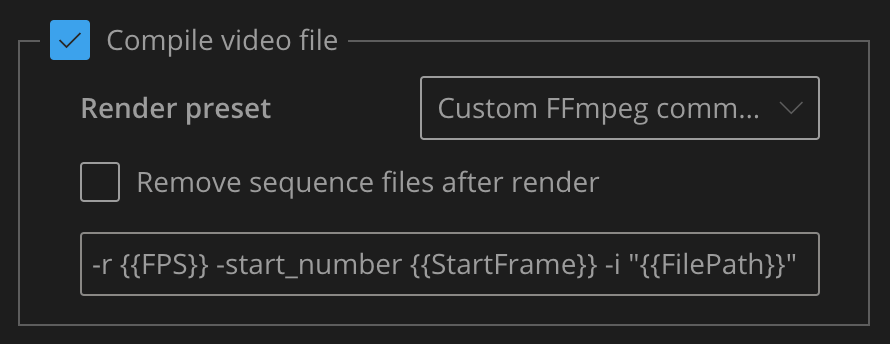
Click on the command text to open the Message Composer window and edit the command.
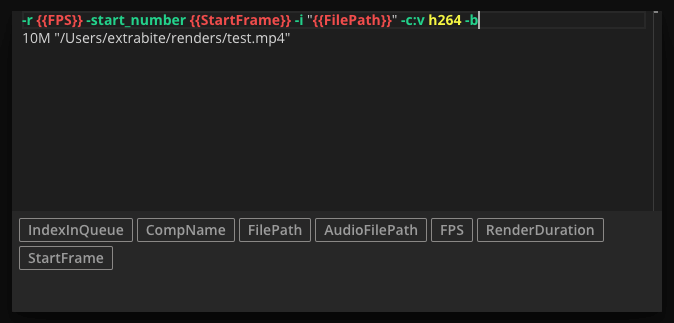
Important considerations
- Custom FFmpeg command is still an experimental feature — use it at your own risk.
- You need to have experience writing FFmpeg commands.
- Don’t put “ffmpeg” at the beginning of the command — BG Renderer Max adds it automatically.
- BG Renderer Max ships with FFmpeg compiled using only LGPL-licensed libraries, so libx264 and libx265 are not available. You may manually replace the FFmpeg binary with one downloaded from the official website or a custom-compiled build. However, we cannot guarantee compatibility with third-party builds.
- Wrap all paths in “double quotes,” even when using the provided tags.
- The AudioFilePath tag may not work correctly.
- Syntax highlighting is limited for now.
Use all frames in the folder to compile video
This option is only available when Overwrite existing frames is selected in the Sequence handling dropdown.
When enabled, BG Renderer Max will use all previously rendered frames in the folder to compile the video. When disabled, only the frames rendered in the current job are used.
This means you can render and compile only part of the composition.
Save video to a custom folder
Save video to a custom folder allows you to separate the source Sequence and final video render (e.g., put compiled video to a Dropbox folder and keep sequence files local).
Tips and tricks
How to render in 16 or 32-bit color depth
By default, all BG Renderer Max output module presets are 8-bit.
To render in 16-bit color depth, create your own preset and set Sequence format dropdown to As in render queue.
How to render with Alpha Channel
BG Renderer Max installs PNG and TIFF templates, but neither supports the alpha channel.
To render with alpha, create a custom file sequence output template (TIFF, PNG, or EXR) with RGB + Alpha selected in the Channels.
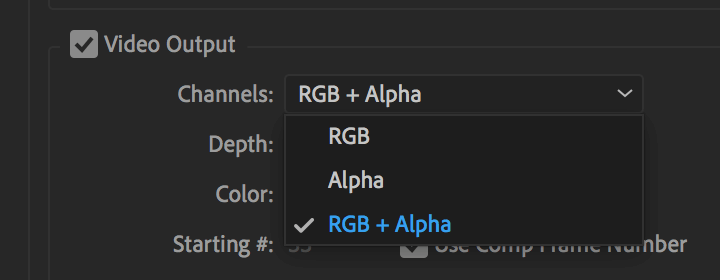
Then select As in render queue in the Sequence format dropdown.
If you have GifGun installed, you may use the GifGun_Alpha_Png preset that is added to your presets list when you first enable Keep Alpha in its settings.
Render folders
BG Renderer Max offers several options affecting the output file or sequence location.
Here's a table with a quick overview of the output location with different sequence settings (Multiprocessing turned ON). The bold part of the path is set by the user.
| Output folder | As in render queue | Project folder | Custom |
|---|---|---|---|
| All unchecked | Takes path specified in the render queue as is /Projects/Project_1/renders/ |
Takes project path, adds /BGrenders subfolder and a subfolder with Comp name /Projects/Project_1/BGrenders/CompName/ |
Takes custom folder path, adds subfolder with Comp name /Projects/CustomFolder/CompName/ |
| Keep sequence iterations | Same as with all unchecked, but if anything is already in the target folder, adds _tmp_ to that folder name and creates the new one for the current render | ||
| Old sequence: /Projects/Project_1/renders_tmp_1/ New sequence: /Projects/Project_1/renders/ |
Old sequence: /Projects/Project_1/BGrenders/CompName_tmp_1/ New sequence: /Projects/Project_1/BGrenders/CompName/ |
Old sequence: /Projects/CustomFolder/CompName_tmp_1/ New sequence: /Projects/CustomFolder/CompName/ |
|
| Remove sequence | Same as with all unchecked, but also puts sequence in the _BGRMAX_SEQ_TMP subfolder to remove later | ||
| /Projects/Project_1/renders/_BGRMAX_SEQ_TMP_1_1/ | /Projects/Project_1/BGrenders/CompName/_BGRMAX_SEQ_TMP_1_1/ | /Projects/CustomFolder/CompName/_BGRMAX_SEQ_TMP_1_1/ | |