
Post-Render Actions
BG Renderer Max allows you to flexibly control and set up your post-render workflow with various actions.
An action is a piece of code that either sends you a notification, lets you connect to a third-party service, or manipulates the final file.
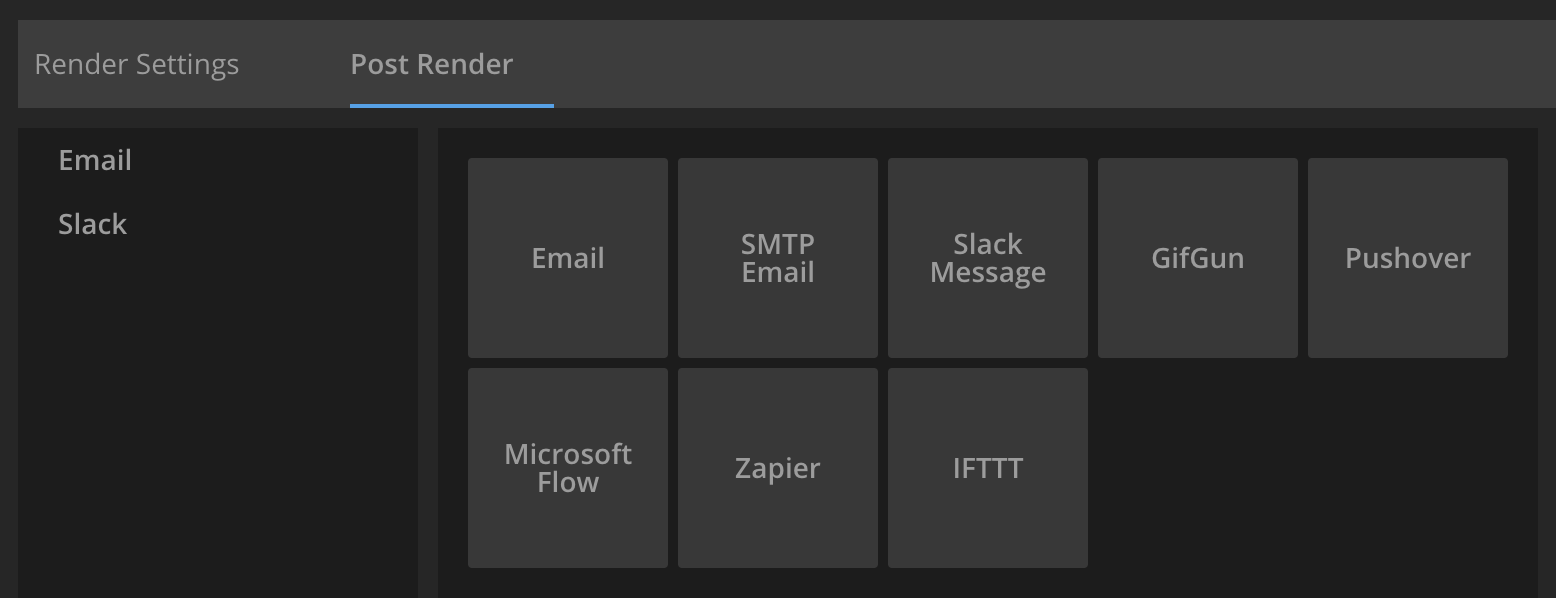
You can add any number of actions to be executed on each composition render or at the end of the whole batch.
Sequence to video is an action that is always on top of the list and can be removed only by unchecking the Compile video in Render Settings.
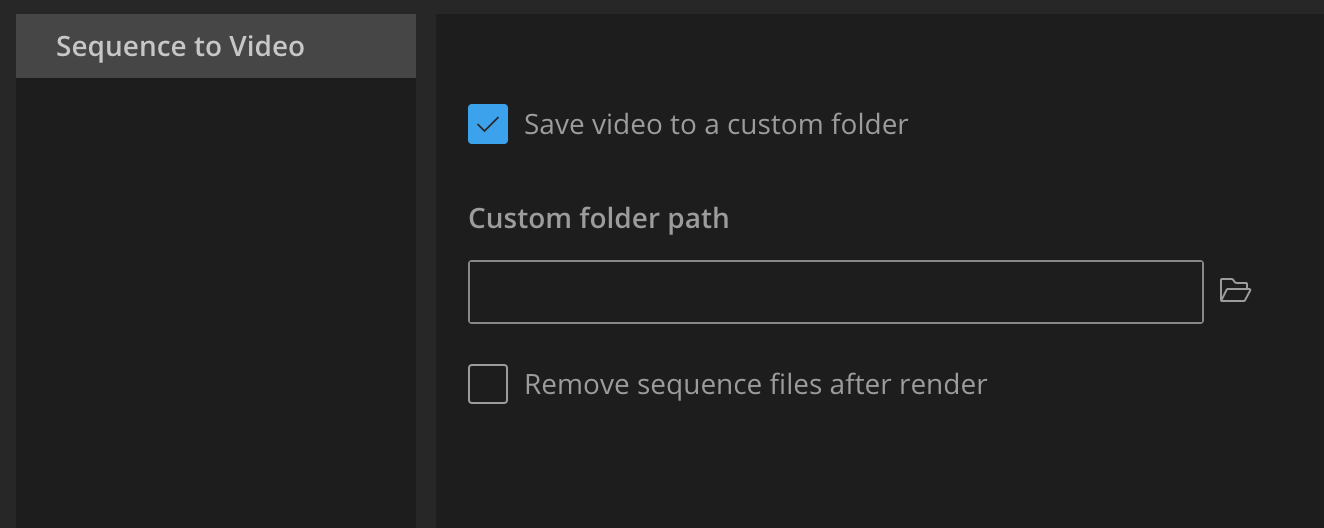
Actions are executed top to bottom, with each previous action passing its results to the next one.
Adding and removing actions
Click + Add action on the bottom of the actions list and select the action you want to add.
Hover over the action in the list and click Remove to remove it.
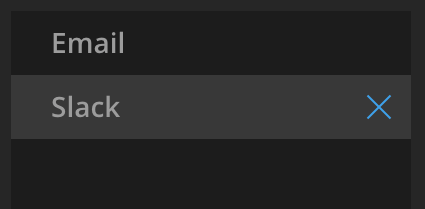
Click OK in the confirmation prompt to remove the action and all its data. You will need to re-enter it if you add the action again.
Use the action’s help icon to access the corresponding help page for setup.
Error handling
If you’ve entered incorrect or insufficient data into the action fields, the action won’t be able to process it, which can cause all subsequent post-render actions to fail.
The problematic action will be highlighted in red, indicating that you need to fix the issue:
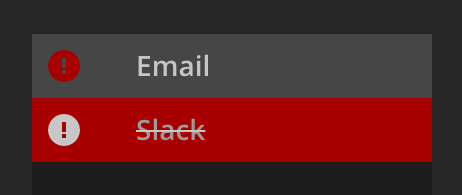
If you see this, double-check the action data and make sure it passes the test. Each notification action has a test button.
Notification Actions
There are two notification options built into BG Renderer Max:
Email and its old-fashioned counterpart, SMTP Email
You can also use more sophisticated third-party integrations:
- Discord for rich channel notifications — free, no paid plan required
- Slack for team channel notifications via Incoming Webhooks — free
- Zapier for complex workflows
- IFTTT for simple two-step triggers
- Power Automate for branching logic, mobile push and more
- Pushover for mobile and desktop push notifications