
Automate with IFTTT
IFTTT is an automation service for simple trigger-action scenarios, like adding data to Google Sheets, sending emails, or posting Slack messages when a render completes.
IFTTT offers two free Applets; additional Applets or advanced features require an IFTTT Pro subscription.
Before you start, go to IFTTT website and register if you don't have an account yet.
Step 1
Go to IFTTT dashboard and click on New Applet.
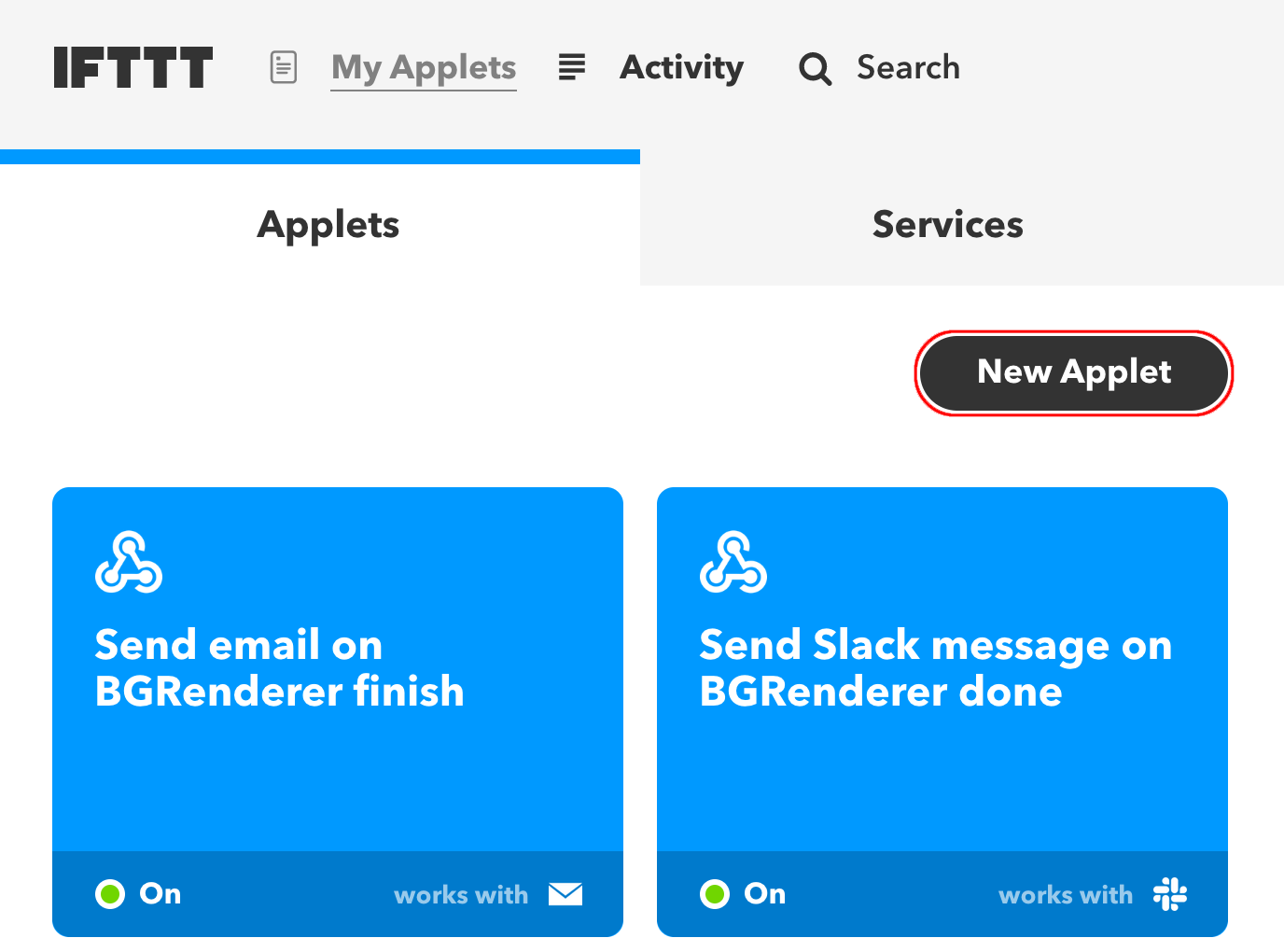
Click on This.

Step 2
Search for Webhooks in the Choose a service window.
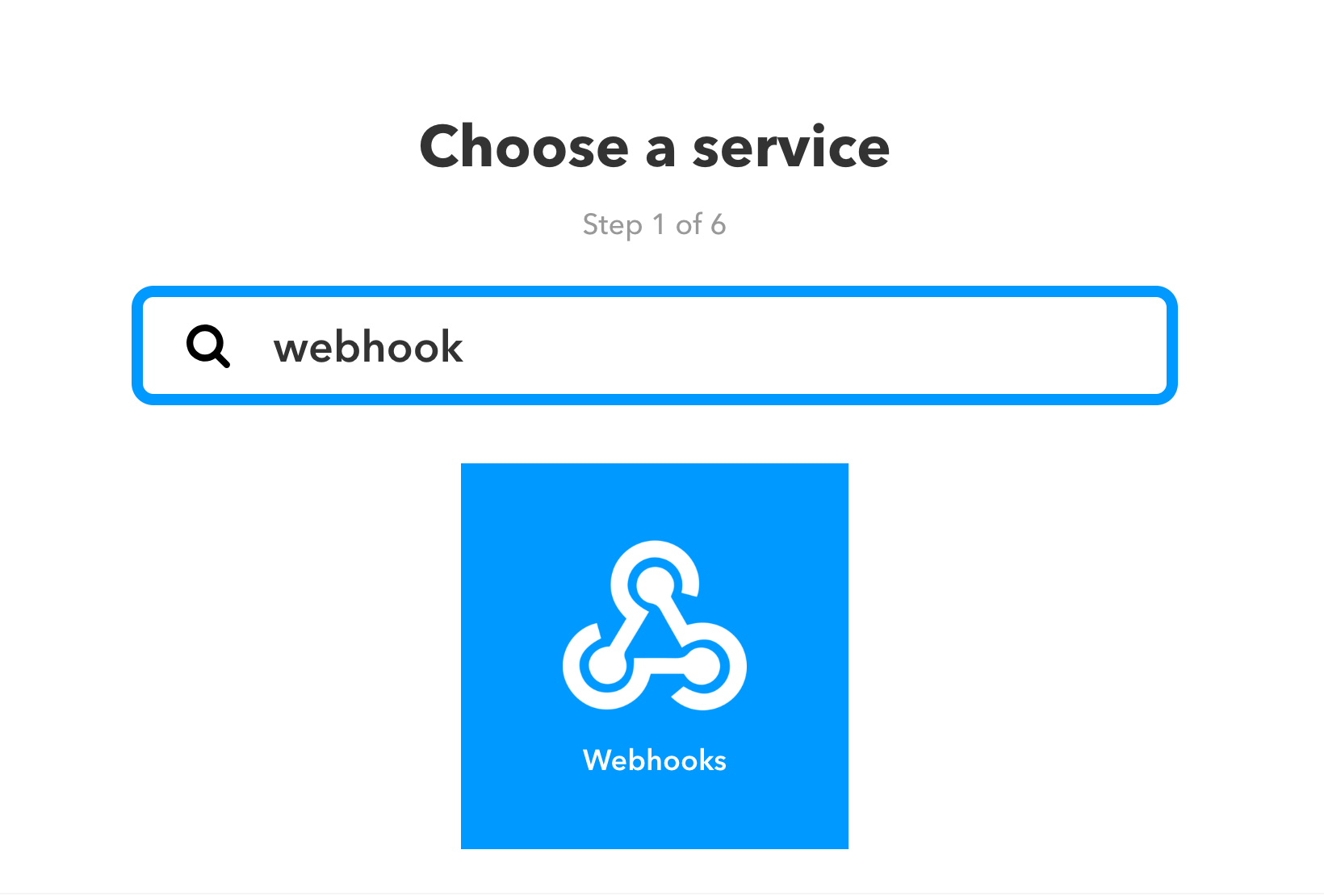
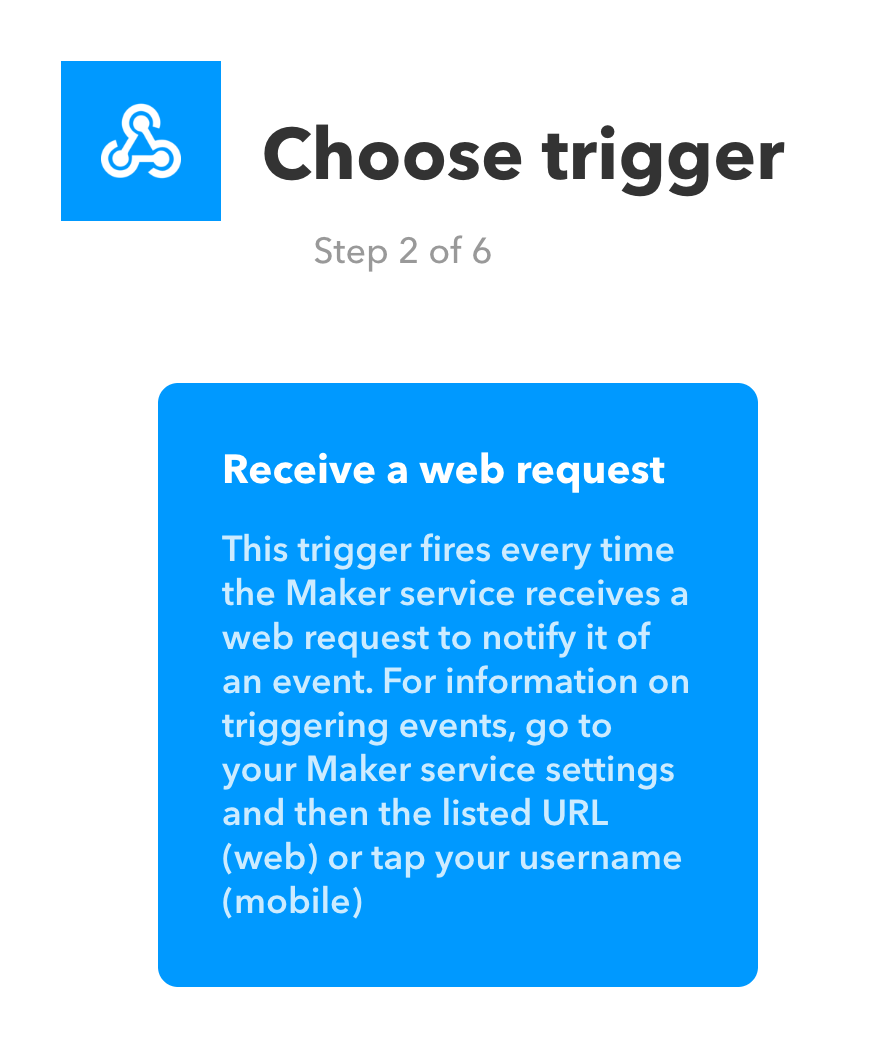
Click on the Webhooks tile and then select the Receive a web request option.
Step 3
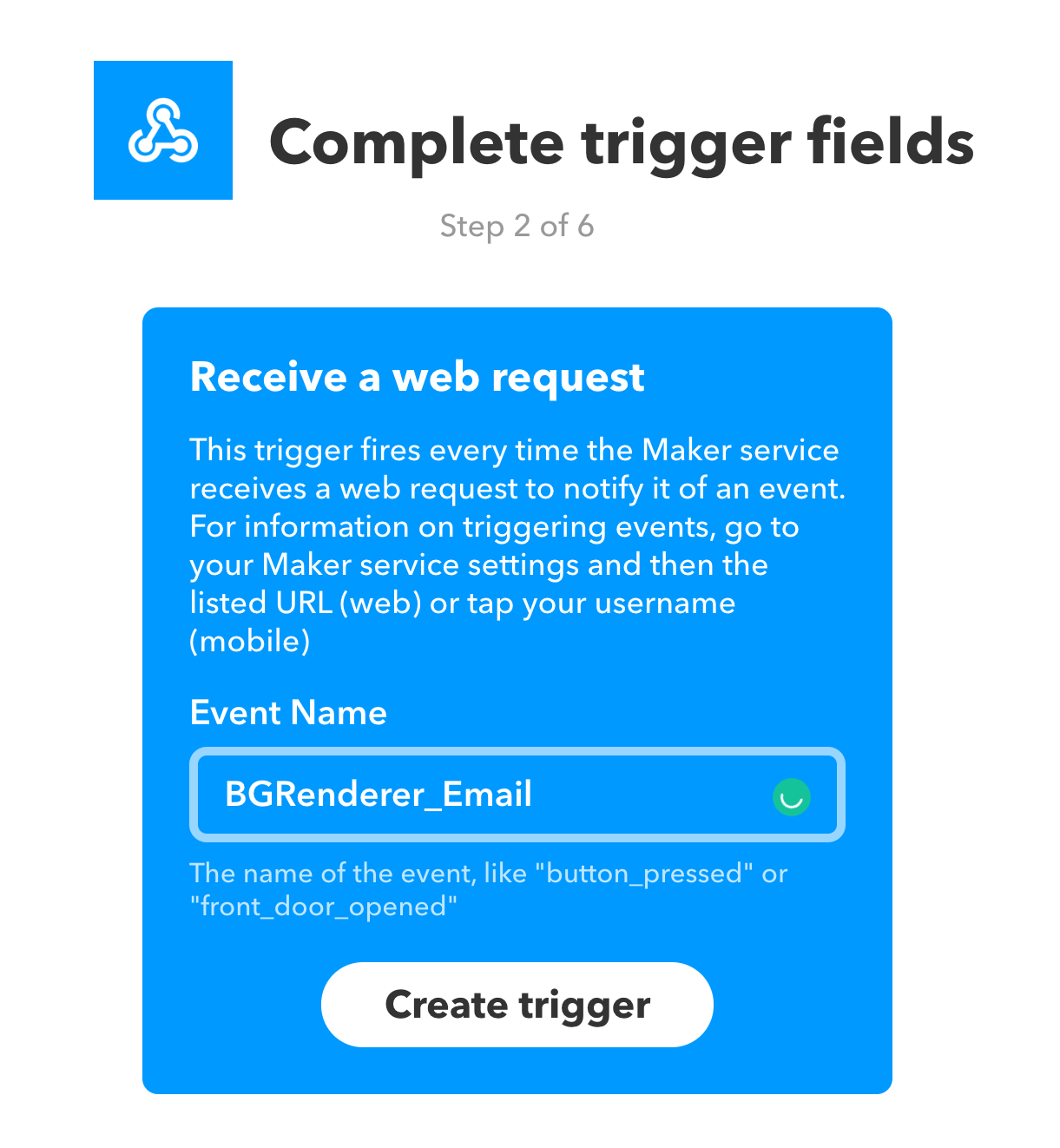
Name your trigger. You may have multiple triggers, but each must have a unique name.
Step 4
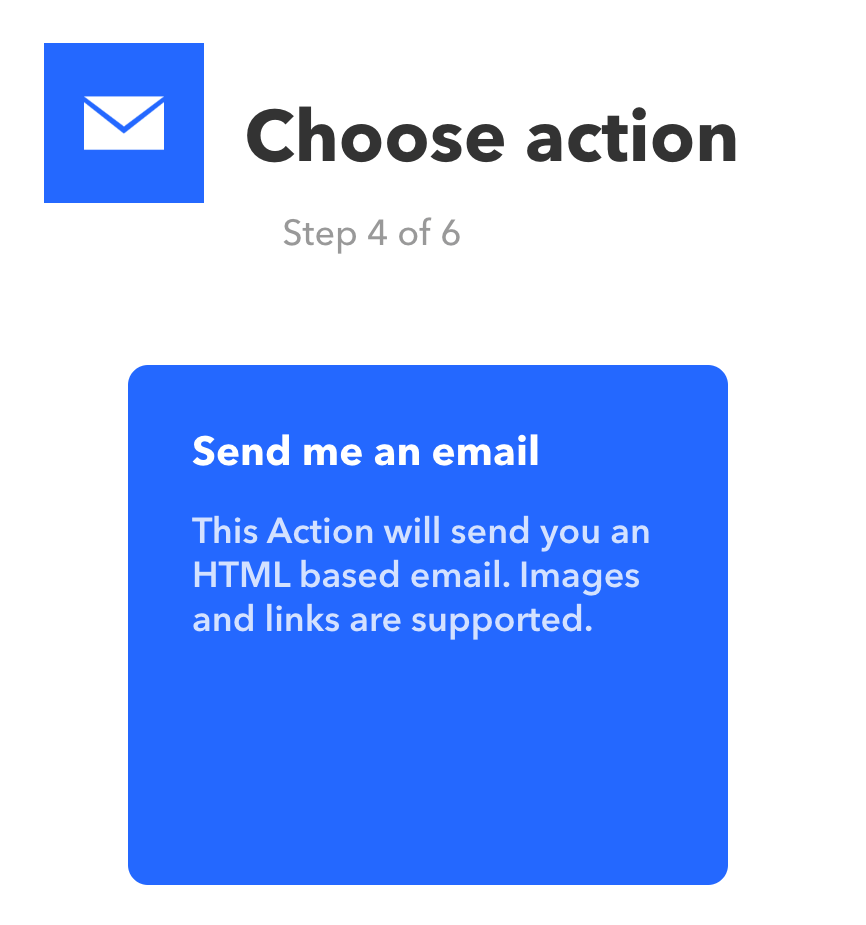
Now click on That.

Select a service you want to use for notification or action (Slack, Email), and go through the service setup process.
Step 5
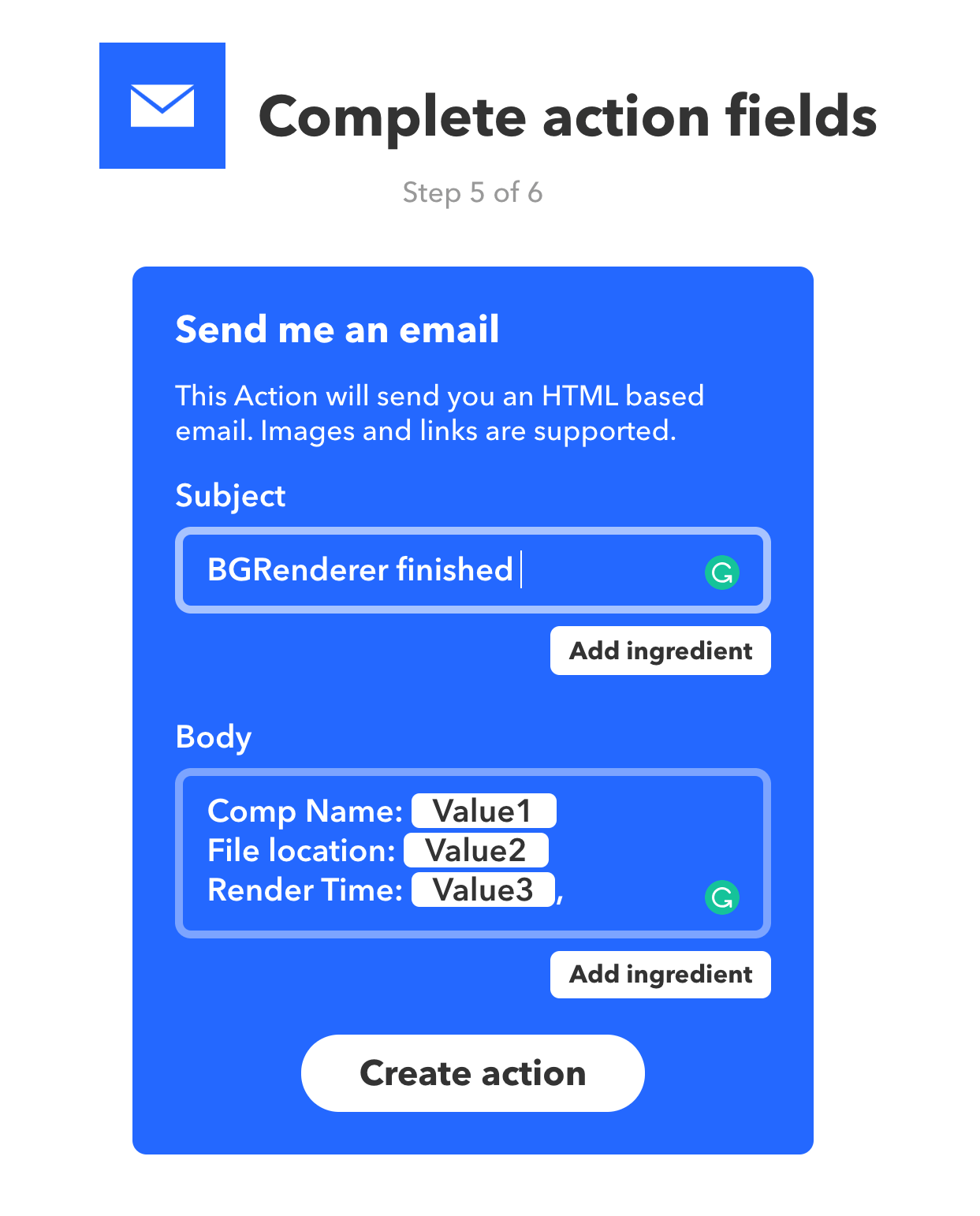
Complete action fields
Unlike Zapier or Power Automate, you can use only three Value fields with IFTTT, which are preset as:
- Value1 – Composition Name
- Value2 – Render Path
- Value3 – Render time
Step 6
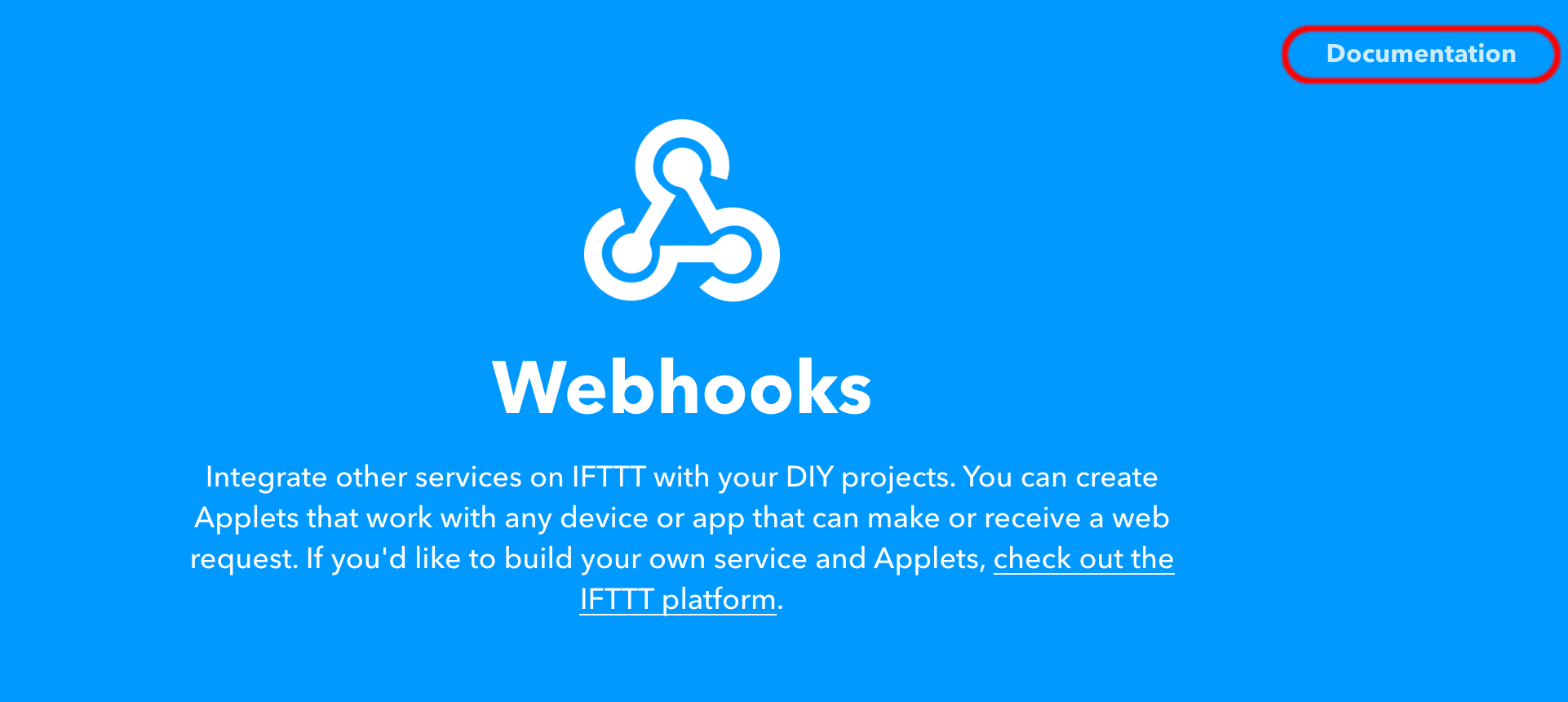
Now go to the Webhooks page and click on Documentation.
Copy your Key
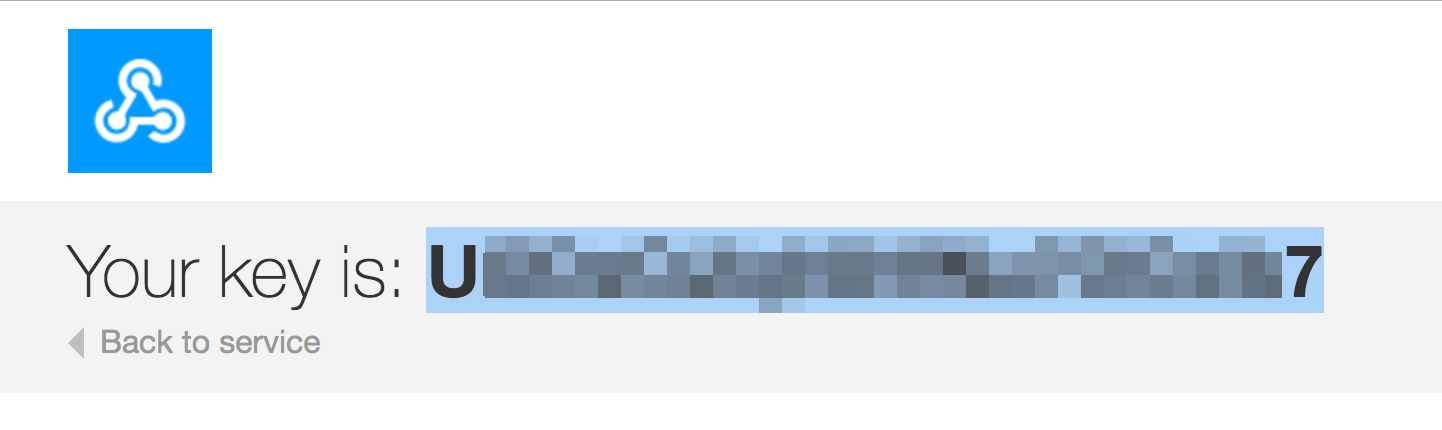
And paste it along with the trigger name from Step 3 to the IFTTT action interface in BG Renderer Max’s Post-Render actions.
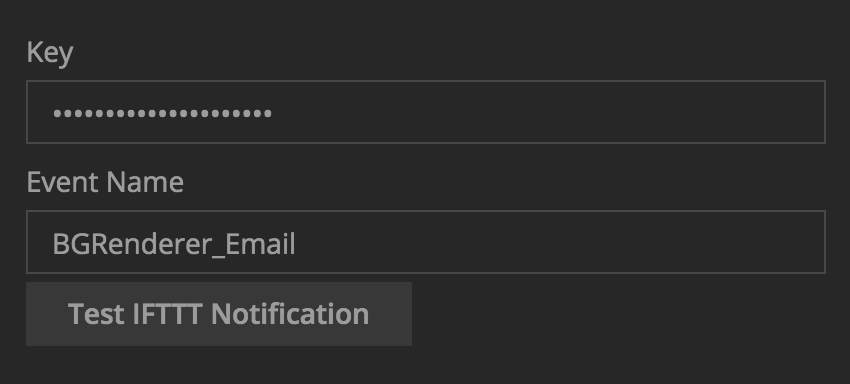
Test the new Applet and continue working with BG Renderer Max.
If you remove and then re-add the IFTTT action, the Key will be lost. Go back to your IFTTT dashboard to retrieve it and paste it again.