
Send Email
BG Renderer Max uses its own servers to send you email notifications.
Just add an Email action and enter one or more email addresses:
Step 1
Click on Add new email button and type it in the text field.
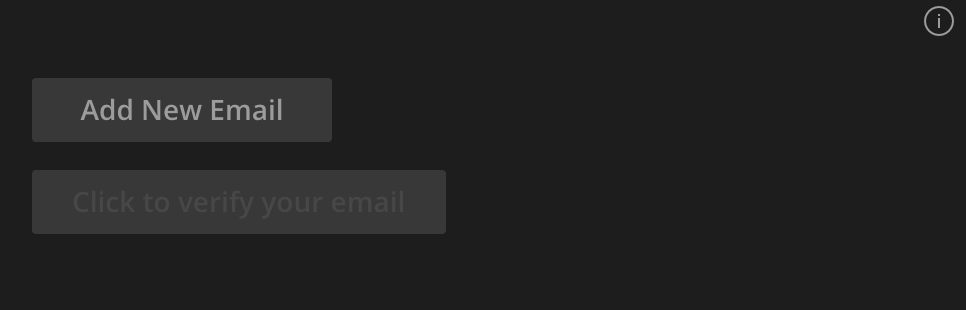
Step 2
Verify your email.
You will be redirected to our website for email verification.
Open your inbox and click the link in the email you received from the website.
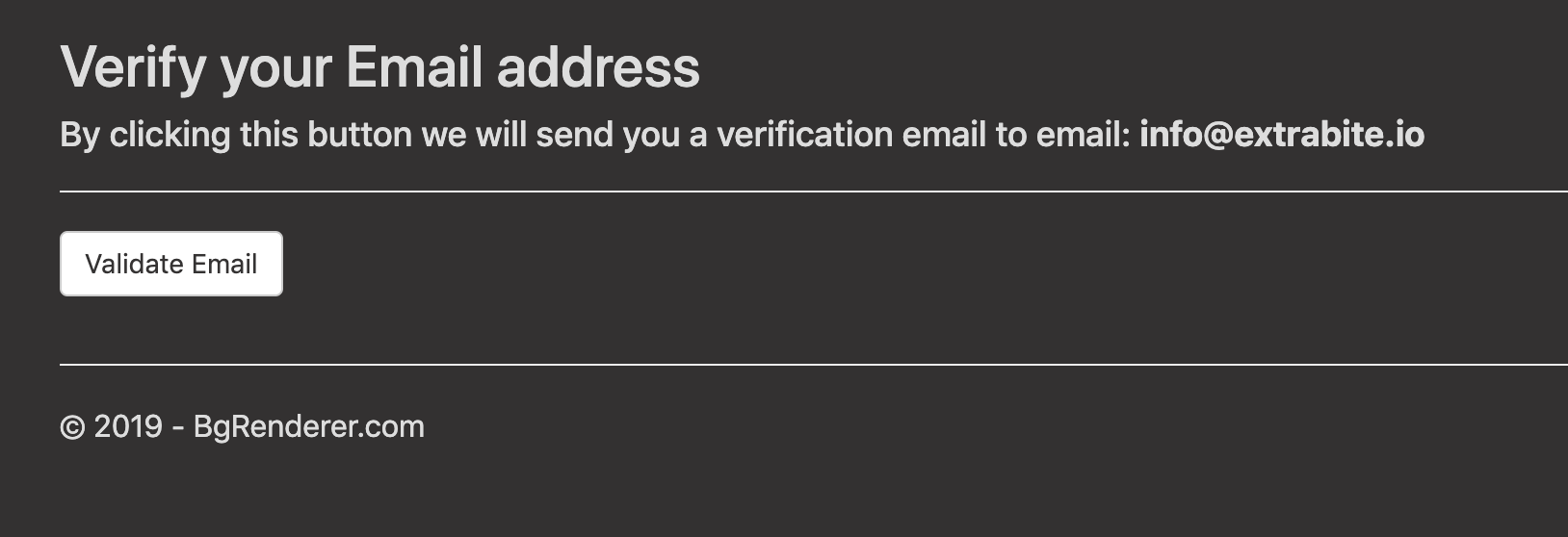
You don’t have to do anything extra. BG Renderer Max automatically captures the authorization token.
Step 3
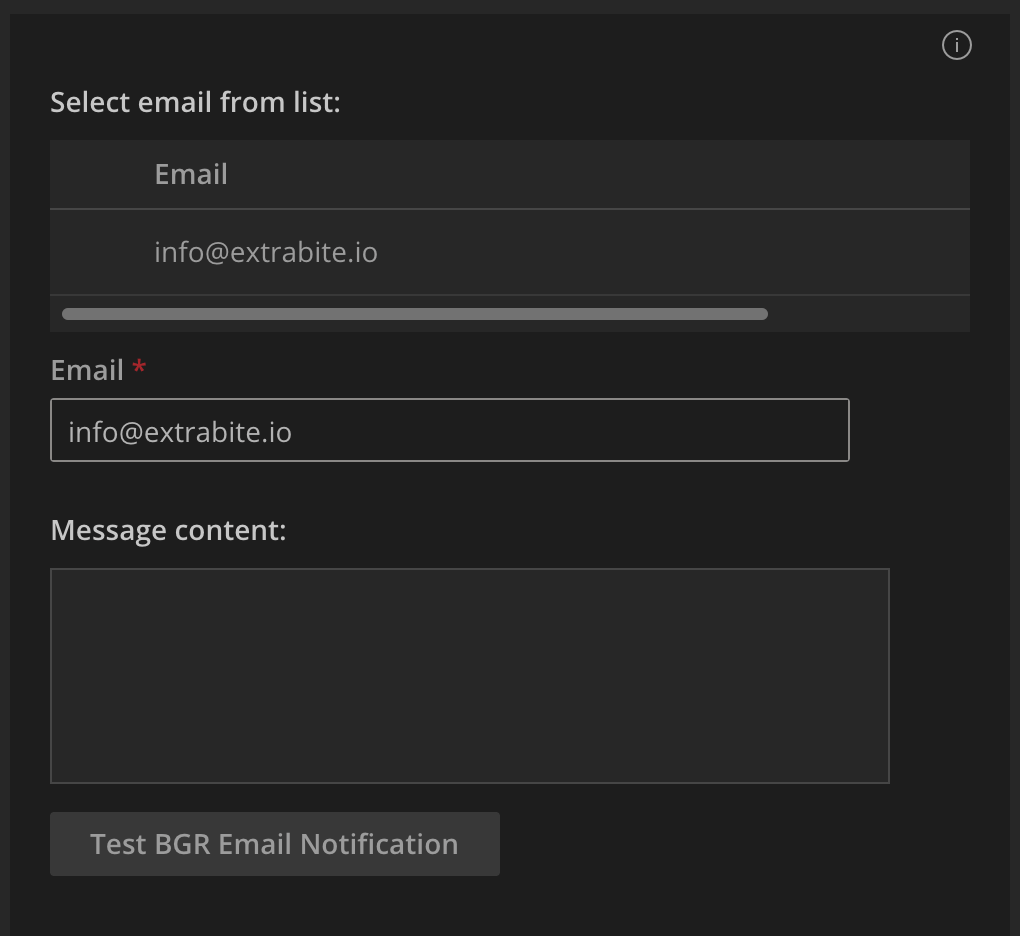
Choose the email address for notifications.
Go back to the Post-Render actions interface. Your email address should be already available.
You may add any number of emails, but choose only one to send a notification.
Step 4
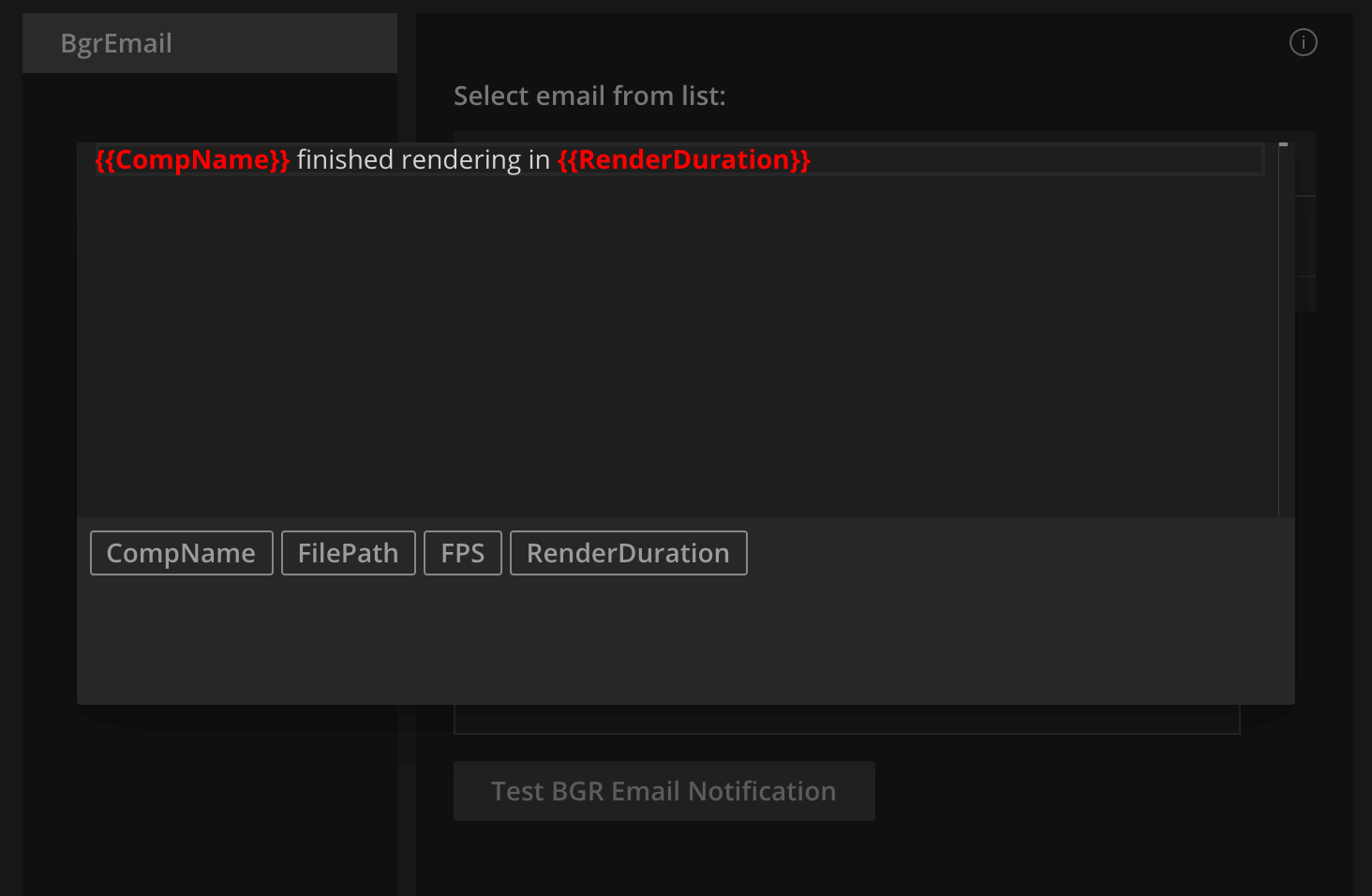
Use Message Composer to create a notification message.
Test the notification to make sure everything works as expected.
You may also configure Zapier, IFTTT, or Power Automate to send you email notifications.