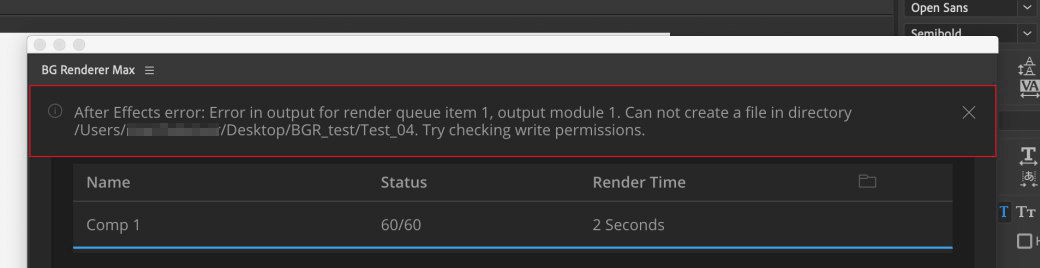
Troubleshooting
Sometimes we all need a little bit of troubleshooting.
First steps
Make sure you have the “Back Up This Mac” feature disabled in your macOS Dropbox app: https://aescripts.com/knowledgebase/index/view/faq/dropbox-macos-warning/
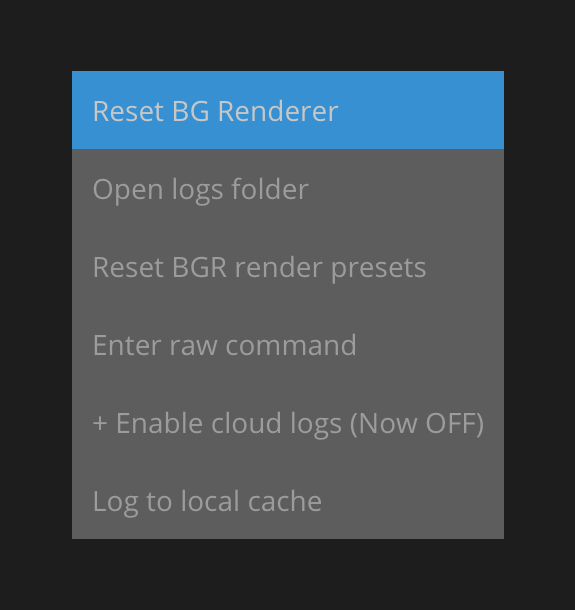
- Hold Shift and right-click anywhere on the BG Renderer Max interface.
- Click Reset BG Renderer.
- Close After Effects and wait 30 seconds.
- Check Activity Monitor on macOS or Task Manager on Windows for the BgRendererMax process. If it is still running, force-quit it.
- Restart After Effects and BG Renderer Max.
Generating Logs
BG Renderer Max always writes logs for the last render.
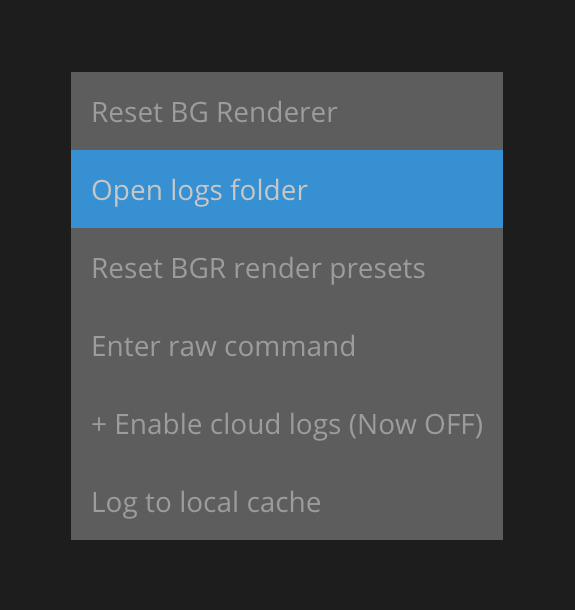
To access them, hold Shift and right-click anywhere on the interface.
Click on the Open logs folder button.
Send the default_out_log_core.log, default_out_log_core_err.log, and bgrmaxlogs.ndjson files.
The .ndjson file can be quite large, so consider compressing it before sending.
Submitting a Support Ticket
Click the menu icon next to the BG Renderer Max name in the panel, select Support – Report Bug, and write your bug report in the new window.
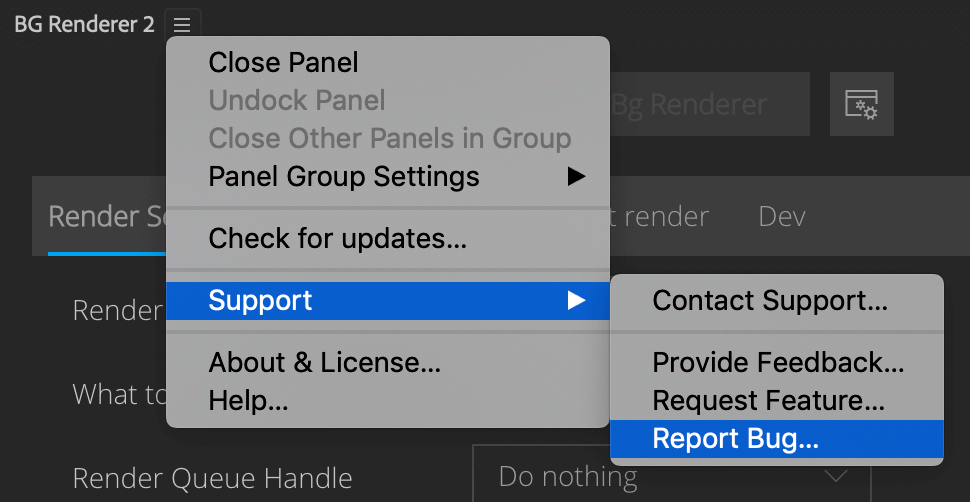
This will redirect you to the aescripts website to complete the process.
Known issues
Issues with cloud synced folders
When you run BG Renderer Max with multiprocessing turned on, it launches multiple engine instances, each writing to a folder.
If the folder is cloud-synced (e.g., Dropbox, OneDrive, Google Drive), other processes may compete with BG Renderer Max for the files (sometimes copying them in the background), which can result in missing or corrupted frames.
We recommend turning off sync while you render to avoid these issues.
Sequence is not compiling to the video
This error rarely occurs, but if you have no error messages and still no video, disable and then re-enable the Compile Video checkbox in the settings.
EPERM on network disks

This error occurs when BG Renderer Max is not allowed to write to the network disk where the .aep file is saved.
How to fix:
Manually create a BgRendererMax subfolder in the .aep file location and allow BG Renderer Max to write to it.
Can't import templates
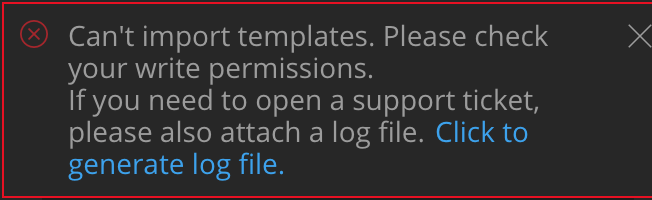
After Effects 15.x doesn’t have WAV audio available as an output module, so BG Renderer Max can’t set up the audio output template.
It sometimes helps to remove everything from the After Effects Render Queue, then close BG Renderer Max and try again.
If it doesn’t help, the safest fix for now is to use After Effects CC2019 (16.x). Another option is to replace the injected preset with a preset without WAV. Please open a support ticket on aescripts for assistance.
macOS – EEXIST
The error occurs randomly and doesn’t allow you to continue rendering. This issue was fixed in 1.0.6.
Please report if you experience it.
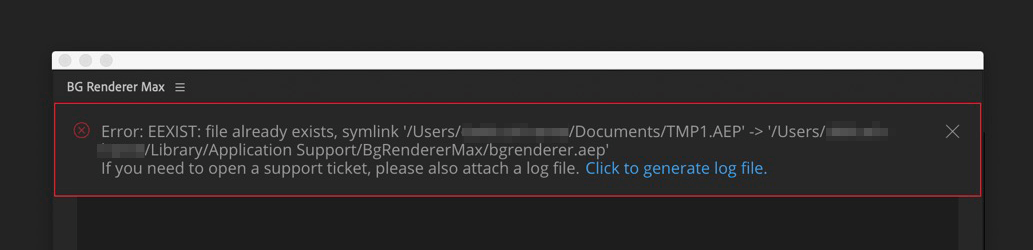
How to fix:
Manually remove the bgrenderer.aep file from the /Users/USERNAME/Library/Application Support/BgRendererMax/ folder.
macOS – Write Permissions
The warning occurs while the render is in progress, though it does not affect the render.
This is an aerender issue. If you don’t receive a notification of missing frames at the end of the render process, you can safely ignore this warning.